
Download Sniptool – Free Screen Capture Tool for Windows with Annotation & Secure Updates
Why Sniptool Stands Out Among Free Screen Capture Software
When it comes to capturing and editing screenshots on Windows, many users default to the built-in Snipping Tool. However, Sniptool by Dan Stromi offers a fresh, modern alternative that brings enhanced functionality without the bloat. This lightweight, free screen capture tool is ideal for students, professionals, and casual users who need more than just a basic screenshot—what they need is a way to annotate, highlight, and share visual content efficiently. With its intuitive interface and responsive design, Sniptool ensures that capturing any part of your desktop is not only fast but also highly customizable.
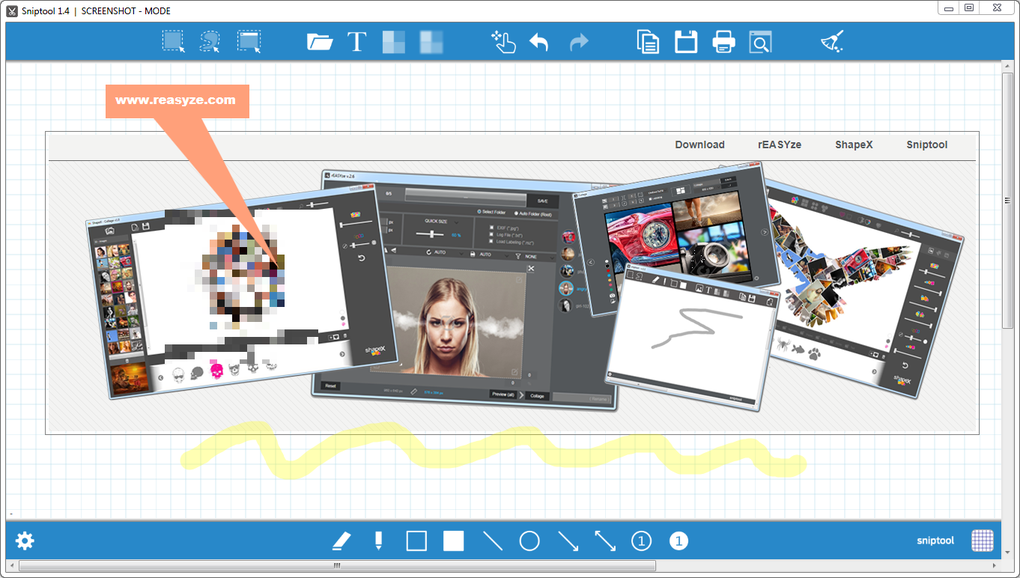
One of the standout features of Sniptool is its dual capture mode: you can either draw a rectangular selection or use the freehand tool to mark any irregular shape on your screen. This flexibility makes it perfect for highlighting specific UI elements, troubleshooting errors, or creating tutorial guides. The software also supports real-time annotation, allowing you to draw with a pencil, add text, apply blur effects, and insert watermarks—ideal for protecting sensitive content before sharing. Whether you're documenting a software bug or creating a training manual, Sniptool gives you the tools to make your screenshots more informative and professional.
Despite its powerful features, Sniptool remains lightweight and runs smoothly even on older systems. It’s designed to be user-friendly, with all essential tools accessible directly from the main interface. The settings menu, located in the lower-left corner, lets you customize the grabber behavior, set default save formats, and adjust annotation preferences.
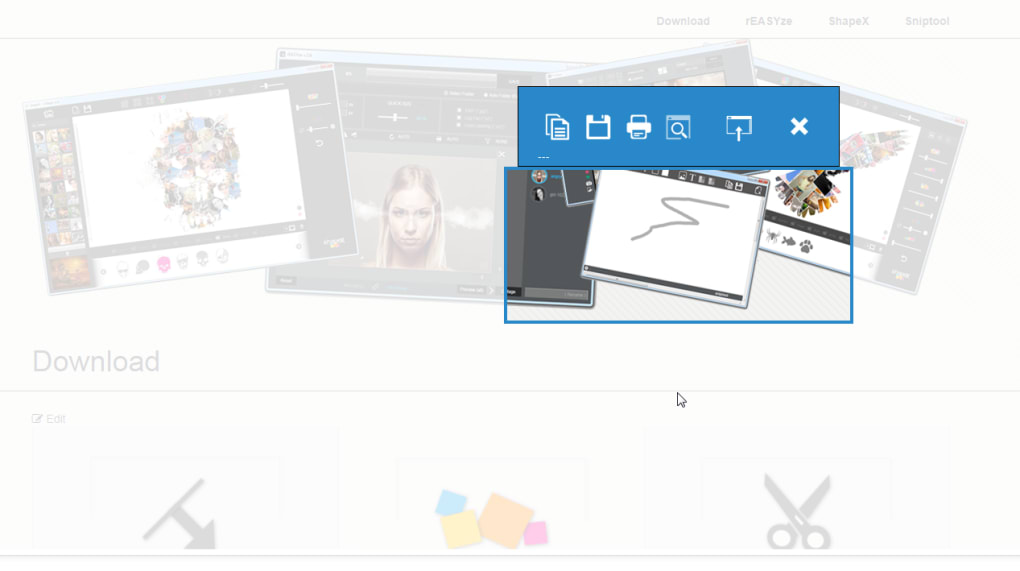
However, one known limitation is that the last screenshot overlaps the previous one instead of replacing it, which can be confusing during extended use. While this issue doesn’t break functionality, it’s something to keep in mind and manage manually by deleting old captures. Overall, Sniptool delivers a seamless experience for anyone seeking a secure, free, and efficient screen capture solution.
Key Features and Tools That Make Sniptool a Must-Have App
Sniptool isn’t just another screenshot tool—it’s a complete visual documentation assistant. Its feature set is thoughtfully designed to streamline the process of capturing, editing, and sharing screen content. The first major advantage is the multi-mode capture system, which allows users to select either a fixed rectangle or a freehand shape, giving flexibility depending on the content you’re capturing. This is particularly useful when dealing with non-rectangular UI elements or irregularly shaped areas on your screen.
Annotation tools are where Sniptool truly shines. You can use the pencil tool to draw directly on the screenshot, apply highlighters, write text with various fonts and sizes, and even blur sensitive information—perfect for sharing internal reports or customer data securely. The watermark feature is especially useful for branding or protecting intellectual property. Whether you're creating content for social media, support documentation, or presentations, these tools help you convey your message clearly and professionally.
File format support is another strong point. Screenshots can be saved in PNG, JPG, BMP, or TIF—ensuring compatibility with most platforms and applications. PNG is recommended for high-quality images with transparency, while JPG works well for web sharing. The ability to set a default save location and format through the settings menu enhances workflow efficiency. Additionally, Sniptool supports automatic updates, so you can always access the latest version with improved performance and bug fixes.
- Freehand and rectangular screen capture modes – Capture any screen area with precision.
- Real-time annotation tools – Draw, highlight, blur, and add text instantly.
- Multiple export formats – Save as PNG, JPG, BMP, or TIF.
- Customizable settings – Adjust grabber behavior, default save paths, and more.
- Watermark and privacy protection – Blur sensitive data before sharing.
How to Install and Use Sniptool on Windows: Step-by-Step Guide
Getting started with Sniptool is straightforward, though a few prerequisites must be met. First, ensure that your Windows system has the Microsoft .NET Framework version 4.4 or higher installed. This is essential for the application to launch properly. If you're unsure about your current version, you can check it via the Control Panel or download the latest version from Microsoft’s official site.
Once the .NET Framework is confirmed, download the Sniptool installer from the official website. The file is small and installs quickly. During installation, you’ll be prompted to choose a destination folder—though the default location works well for most users. After installation, launch the app from the Start menu or desktop shortcut. The interface appears instantly, displaying all available tools on the main screen.
To take a screenshot, click the “Capture” button and choose either “Rectangular” or “Freehand” mode. Drag your cursor to select the desired area. Once captured, you’ll see the image in the editor window. Use the toolbar at the top to annotate—click the pencil to draw, the text icon to add notes, or the blur tool to obscure sensitive content. When satisfied, click “Save” and choose your preferred format and destination folder.
For frequent users, the settings menu (lower-left corner) allows customization of default behaviors. You can set the default file format, enable auto-save, or change the shortcut key for capturing. The tool also supports keyboard shortcuts, which can speed up the workflow significantly. While Sniptool doesn’t currently offer cloud integration or OCR, its core functionality is robust and reliable for everyday use.
Compatibility and System Requirements
Sniptool is designed specifically for Windows operating systems, making it a go-to choice for users on desktops and laptops running Windows 7, 8, 10, or 11. It’s compatible with both 32-bit and 64-bit versions, ensuring broad accessibility across different hardware configurations. The software is lightweight, requiring minimal system resources—typically less than 50 MB of RAM during operation—making it suitable for older machines as well.
As mentioned earlier, the Microsoft .NET Framework 4.4 or later is a mandatory dependency. This ensures that Sniptool runs securely and efficiently. Users should also have administrative rights to install the software and access the necessary system permissions for screen capture. While Sniptool is currently not available for Mac, Android, or iOS, its Windows-only focus allows for deeper integration with the OS and better performance.
For those seeking cross-platform alternatives, tools like Snagit or Lightshot offer similar features across multiple devices. However, Sniptool’s free, secure, and no-ad model makes it a standout choice for Windows users who want powerful screen capture without cost or clutter. Regular updates are released to fix bugs and improve stability, ensuring long-term usability.
Pros and Cons: Is Sniptool Right for You?
- Pros:
- Free and secure with no ads or in-app purchases
- Lightweight and fast, even on older systems
- Intuitive interface with easy-to-use annotation tools
- Supports multiple file formats (PNG, JPG, BMP, TIF)
- Real-time editing and customizable settings
- Cons:
- Overlapping screenshots can be confusing (no auto-replace)
- Only available for Windows (no Mac, iOS, or Android version)
- Limited color palette for annotations
- No built-in cloud storage or OCR functionality
- Requires .NET Framework 4.4+ to run
Frequently Asked Questions (FAQ)
- Is Sniptool really free to download and use?
-
Yes, Sniptool is completely free to download and use. There are no hidden fees, ads, or in-app purchases. It’s a freeware application developed by Dan Stromi, making it a secure and reliable choice for personal and professional use.
- Do I need to install the .NET Framework to run Sniptool?
-
Yes, Sniptool requires Microsoft .NET Framework 4.4 or later. If it’s not installed on your system, you’ll need to download and install it from Microsoft’s official website before using the app.
- Can I save screenshots in different formats?
-
Yes, Sniptool supports saving screenshots in PNG, JPG, BMP, and TIF formats. You can set your preferred default format in the settings menu for consistent output.
- Does Sniptool support keyboard shortcuts?
-
Yes, Sniptool includes customizable keyboard shortcuts for quick access to capture and save functions, improving efficiency for power users.
- Is Sniptool safe to download?
-
Yes, Sniptool is a secure application developed by a trusted creator. It’s regularly updated to fix bugs and improve performance. Always download from the official website to avoid third-party malware.
Final Verdict: A Powerful Free Alternative for Windows Users
If you're looking for a free, secure, and lightweight screen capture tool with robust annotation features, Sniptool is an excellent choice. While it has minor limitations—like the overlapping screenshot issue and lack of cross-platform support—it delivers exceptional value for its price (zero cost). Its intuitive design, real-time editing tools, and support for multiple file formats make it a top contender among Windows screen capture software.
Whether you're creating tutorials, documenting software issues, or sharing ideas, Sniptool helps you communicate visually with clarity and professionalism. For users who want more than the basic Snipping Tool but don’t want to pay for premium software, Sniptool is a must-download. Download Sniptool today and elevate your screenshot experience on Windows.







